
Steps to Access our online Portal
Step 1:
In your browser, go to:

Step 2:
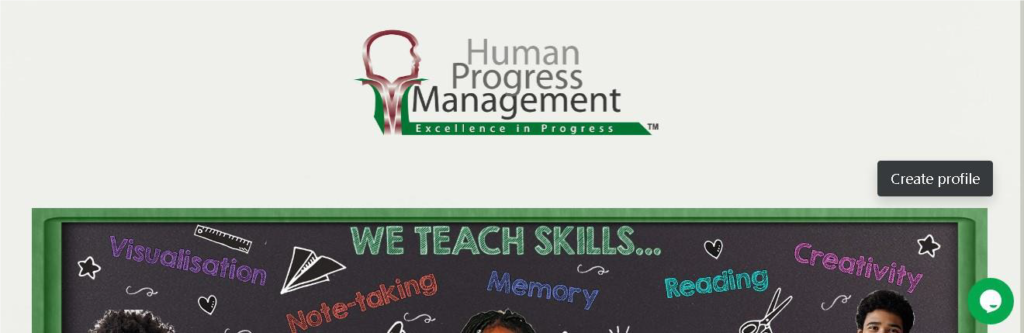
Click on Create profile.
Step 3:
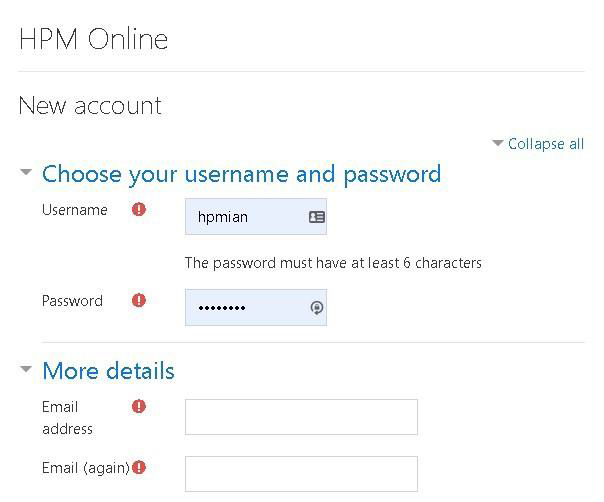
- Choose a username (this name is unique – if it has been used you need to create a different one) and all letters must be “lower case”.
- Select a password, a minimum of 6 characters, (please write your login details down and keep them in a safe place).
- “Email address”: you will have to enter it twice, make sure you enter it correctly, before you can access your account you will have to verify it with the confirmation email.
Step 4:
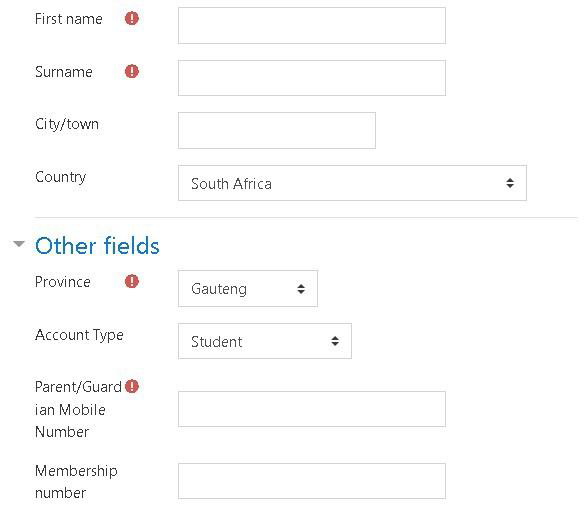
- First name: type your first name.
- Surname: type in your surname.
- City/town: type in the name of your town/area.
- Country: the default is South Africa.
- Province: select your province.
- Account type: Student (is correct).
- Parent/Guardian mobile number: type in your parent or guardian telephone number.
- Membership number: type in your membership number (this is your contract number) all incorrect numbers will be deleted.
Step 5:
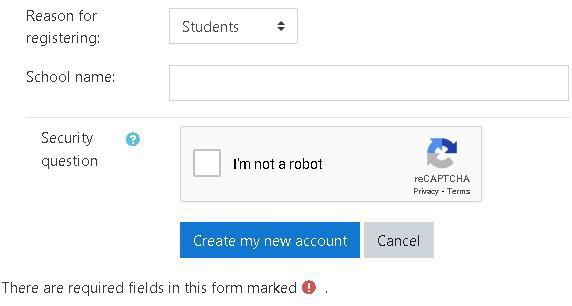
- Reason for registering: keep as “Students”
- School name: Please type in your school’s name.
- Security question: click on the “I’m not a robot” square, then follow the instructions if necessary.
- Click on “Create my new account.
Now go to your email (the one that you entered earlier) and verify the account. Now you should be able to log in!
Steps to Access the Past Exams on the HPM Portal:
- Make sure you are registered on the Portal as explained in steps 1-5 above.
- First go to: portal.hpm.co.za
- Click on the Log In button.
- Enter your selected Username and Password then click Log In.
- Scroll down to Subject Support and click on it.
- The system may show that you are not enrolled in the course. Only for the first time you access this you will have to click on the “Self enrollment (Student)” or “enroll me” button.
- Once the page opens, scroll down to the previous Exam Paper tab and click on it.
- Click on the HPM Logo:

- The system may require you to click on the “Self enrollment (Student)” or “enroll me” button again, this is only for the first time.
- You can select the Grade and subject, by scrolling down you will find the lower grades.
- Select the subject then click on the paper and year that you want (for example: Life Science V2 2019). When you click on the exam paper PDF, it will download to your PC automatically, it would be beneficial for you to print it/them for your own convenience.
Steps To Access the Maths Video Library:
- Make sure you are registered on the Portal as explained in steps 1-5 above.
- First go to: portal.hpm.co.za
- Click on the Log In button at the top right corner.
- Enter your selected Username and Password then click Log In again.
- Scroll down to Math’s Video Library Grade ? (your Grade) for English videos and Wiskunde Videobiblioteek Graad ? (jou Graad) vir Afrikaans videos, then click on the link.
- The system may show that you are not enrolled in the course. Only for the first time you access this you will have to click on the “Self enrollment (Student)” or “enroll me” button.
- You can then open the index menu on the top left of the page (if its not open already), this can help you to navigate through the different topics within our library.
- We are expanding our Math video library. Currently, we offer videos for grades 8 to 10 in both English and Afrikaans. Additionally, we have the first half of grade 11 covered in both languages. Next, we’ll add the remaining videos for grade 11 and then grade 12.